 Tasaheel ERP
Items and Barcodes: Item Cards, Units and Labels
How to build a correct item card: type, units and conversions, VAT per item, categories, reorder level, price lists, and printing and scanning barcode labels.
 By Sherif Fadl — Founder, Tasaheel ERP
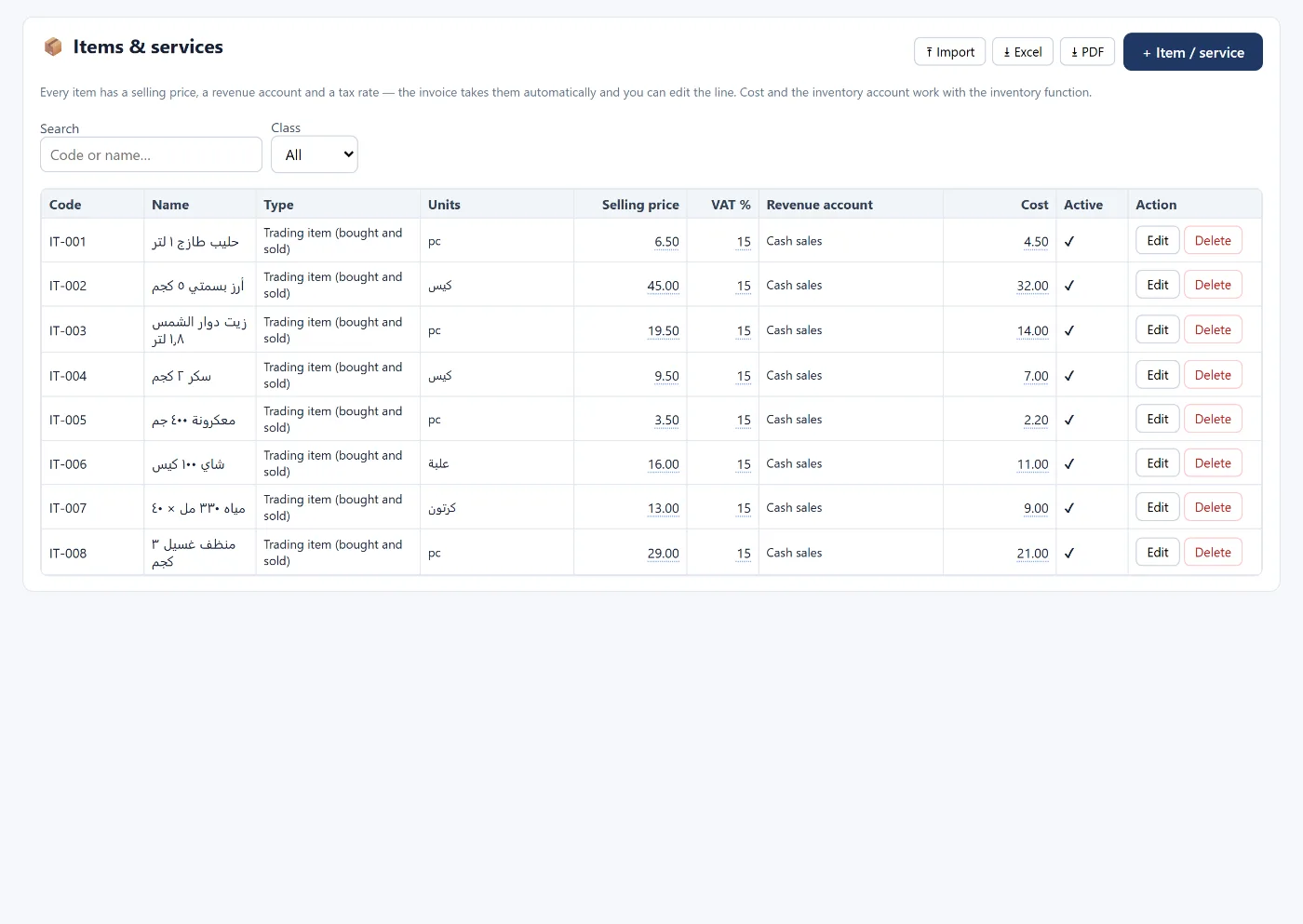
Every figure in stock and sales starts from the item card. An item with the wrong unit, no cost account or the wrong VAT rate corrupts every invoice it appears on. This guide explains what the card needs and how barcodes are used.
Item type
The type decides how the program treats it:
- Raw material / goods for purchase — bought and used in production.
- Sales item — bought and sold.
- Work in progress (semi-finished).
- Finished goods — sold only.
- Service — no stock.
Units and conversions
Buy by the carton and sell by the piece? Each item has a base unit in which stock is kept, a receiving unit for purchases and a sales unit, each with a conversion factor (carton = 24 pieces). The conversion is set on the item itself, because one item's carton differs from another's.
Price, VAT and accounts
- A default selling price, editable on the invoice line.
- VAT type and rate per item — so standard-rated 15%, zero-rated and exempt items are each charged at their own rate on the same invoice, plus excise tax where it applies.
- Revenue, cost of sales and inventory accounts — so every movement lands in its account without intervention.
- A standard cost for comparison; the costing method (weighted average or FIFO) is set for the whole business.
Categories and reorder level
A category tree (main and sub) organises items in reports and on the cashier screen. And a reorder level per item: when the balance falls below it, a low-stock alert appears.
Price lists and discounts
Instead of several prices inside the card, you define rules: for an item, a customer or both, with a minimum quantity, a fixed price or a discount percentage, for a from–to period.
Barcodes
- Enter the barcode on the item card, or let the program generate it from the item code.
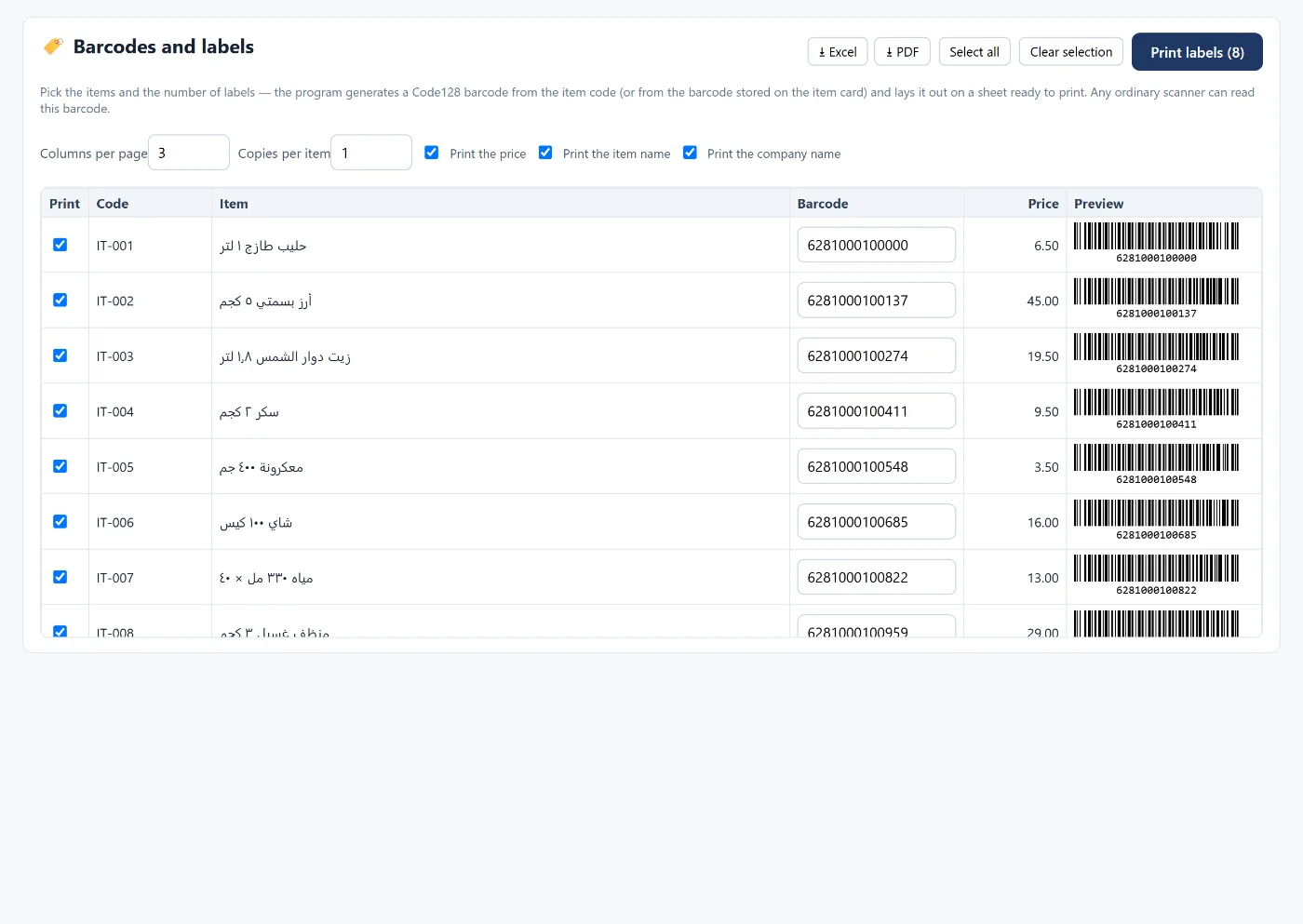
- Printing labels: choose the items, the number of copies and columns per page, and what to print with it (price, item name, business name). The Code128 barcode is readable by any standard scanner.
- Scanning at sale: on the cashier screen, scan the barcode into the search box and the item is added at once.
Common mistakes
- A purchase unit without a conversion factor, so a carton comes in as one piece.
- A taxable item at a zero rate or the reverse, which distorts the VAT return. See the VAT return.
- Two items with the same code or barcode — the program blocks duplicate codes.
How Tasaheel Accounts manages items
- Items and services: the card with all of the above, plus an item image shown on the sales screen and an option to show it at the point of sale.
- Units of measure and a report of item units and conversions.
- Item categories as a tree shown on the cashier with images and colours.
- Barcodes and labels on a print-ready sheet.
- Import from a file: code, name, unit, price, VAT, revenue account and cost; an existing item is updated, not duplicated.
FAQ
Can the same item be sold in more than one unit?
Yes, with a base unit for stock plus a purchase unit and a sales unit, each with a conversion factor.
Is VAT per item or per invoice?
Per item, so one invoice can combine items at different rates.
Do I need a special label printer?
No. Labels print as a sheet from the browser with the number of columns you choose.
Can a barcode be scanned on a regular sales invoice?
Scanning is available on the cashier screen. On an invoice you pick the item by code or name.
Read also stock counts and valuation and accounting software for retail shops, or learn more about Tasaheel Accounts.
Try it in Tasaheel: create a free account, add your first item with its units and barcode, and print its labels.